Create a systemd Service: Units, Security, Logs, and Restart Validation
EdwardMoon
Register a systemd service to start a manually installed program at boot, restart it after failures, and consistently manage its execution user and logs. This guide covers system services on RHEL and Rocky Linux 8/9. The application must keep running in the foreground instead of forking into the background.
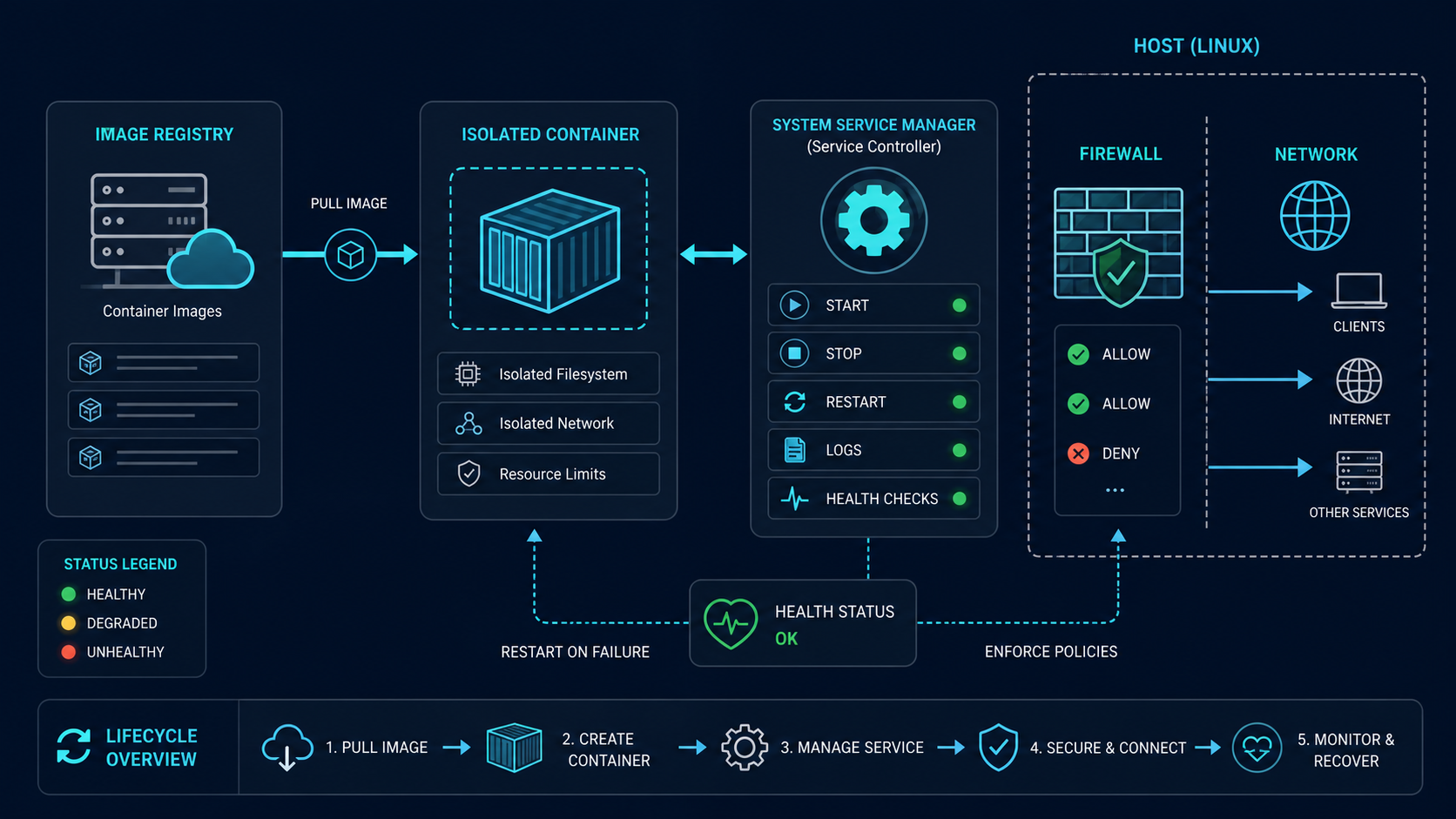
1. Prepare the Executable and Configuration First
Replace /usr/local/bin/myapp and /etc/myapp/config.yml with your application’s paths. These steps do not install the program or generate its configuration. First establish the normal launch command, working directory, required files and ports, and graceful shutdown method. When modifying an existing service, preserve copies of its unit and configuration elsewhere.
command -v systemctl
systemd --version
sudo test -x /usr/local/bin/myapp
sudo test -f /etc/myapp/config.yml
Stop if a check fails. If the package already supplies a service, inspect it with systemctl cat service-name before creating another unit. A drop-in for the supplied unit is often easier to maintain.
2. Create a Dedicated Account and Writable Directory
getent passwd myapp
getent group myapp
# Run once only if the account does not exist.
sudo useradd --system --user-group --home-dir /var/lib/myapp --shell /sbin/nologin myapp
sudo install -d -o myapp -g myapp -m 0750 /var/lib/myapp
sudo chown root:myapp /etc/myapp/config.yml
sudo chmod 0640 /etc/myapp/config.yml
sudo -u myapp test -x /usr/local/bin/myapp
sudo -u myapp test -r /etc/myapp/config.yml
If myapp already exists, verify its purpose and primary group, then skip account creation. Parent directories also require access, so inspect the full path with namei -l /etc/myapp/config.yml. Keep the executable and configuration unwritable by the service account; grant it ownership only of application data directories that need writes. With SELinux enabled, inspect AVC logs and file contexts together.
3. Write the Service Unit
Save the following with sudoedit /etc/systemd/system/myapp.service.
[Unit]
Description=My application
After=network-online.target
Wants=network-online.target
StartLimitIntervalSec=60
StartLimitBurst=5

[Service]
Type=simple
User=myapp
Group=myapp
WorkingDirectory=/var/lib/myapp
ExecStart=/usr/local/bin/myapp --config /etc/myapp/config.yml
Restart=on-failure
RestartSec=5s
TimeoutStopSec=30s
NoNewPrivileges=yes
PrivateTmp=yes
StandardOutput=journal
StandardError=journal

[Install]
WantedBy=multi-user.targetType=simpletracks the launched process as the service’s main process. It does not guarantee application readiness, so a separate functional check is required.ExecStartis not a shell command line. Do not put&, pipes, or redirections directly into it.Aftercontrols ordering;Wantsexpresses a dependency on units to start alongside it. Network-online state does not guarantee that a remote database or API responds successfully.- Combine
Restart=on-failurewith start limits to stop rapid failure loops. Decide whether clean exits should also trigger a restart according to the application’s behavior. PrivateTmpprovides a private temporary namespace. Check compatibility if the program shares /tmp files with other services.
Do not embed passwords or tokens directly in a unit’s Environment=. Use an application-supported restricted configuration file or credential-delivery features supported by your systemd version.
4. Validate Syntax, Start the Service, and Test Functionality
sudo systemd-analyze verify /etc/systemd/system/myapp.service
# Continue only if the checks above report no errors.
sudo systemctl daemon-reload
sudo systemctl enable --now myapp.service
systemctl is-enabled myapp.service
systemctl is-active myapp.service
sudo systemctl status myapp.service --no-pager --full
sudo journalctl -u myapp.service -b -n 100 --no-pager
daemon-reload reloads unit definitions, enable creates boot-time activation links, and --now also starts the service immediately. Changes to a running application’s configuration still require its supported reload method or a planned restart.
Do not stop at an active status. For a web service, query its real health endpoint; for a worker, verify a test job’s result. Test startup after reboot and graceful shutdown during a maintenance window. Adjust the example’s 30-second shutdown timeout to the time needed to avoid lost work.
5. Distinguish Common Failures
| Symptom | What to inspect |
|---|---|
| 203/EXEC | Executable path, execute permissions, script interpreter, and SELinux denials |
| 200/CHDIR | WorkingDirectory existence and directory access for the service account |
| 217/USER | Whether the User and Group accounts exist |
| Exits immediately after startup | Actual arguments and configuration errors, or unexpected daemonization |
| start-limit-hit | Fix the repeated failure in the logs before resetting the limit and restarting |
sudo journalctl -u myapp.service --since '-10 minutes' --no-pager
# Run after correcting the underlying cause.
sudo systemctl reset-failed myapp.service
sudo systemctl restart myapp.service
Roll Back a Change
For a new service, stop it and disable boot activation with sudo systemctl disable --now myapp.service. For changes to an existing service, restore the saved unit and configuration, run daemon-reload, then perform a planned restart and functional test. Do not delete the service account or data directories before checking dependencies and retention requirements.