Fix No space left on device on Linux: Disk Space, Inodes, and Deleted Files
EdwardMoon
When Linux reports No space left on device, a full disk is the obvious suspect. However, the cause may be exhausted inodes, deleted files still held open by a process, a failed mount, or rapidly growing logs, as well as a shortage of disk blocks.
Deleting files with rm -rf before identifying the cause can destroy diagnostic logs or make a service outage worse. This guide walks through a diagnostic sequence and safe remedies for common Linux servers, including Rocky Linux, RHEL, CentOS, and Ubuntu.
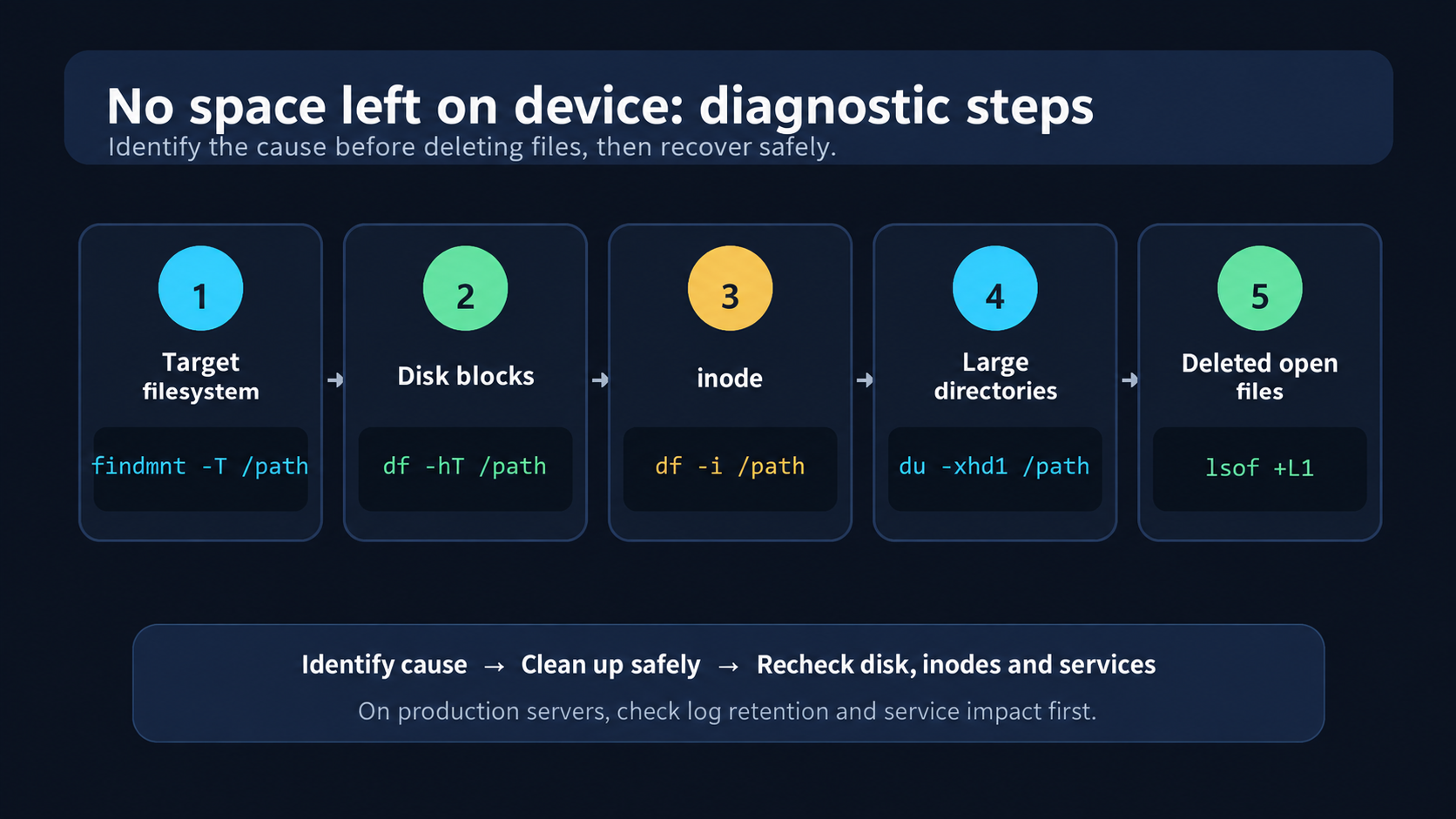
No space left on device: Five Commands to Run First
If time is short, start with these checks in order. Replace /path with an existing directory on the same filesystem as the failing path. If the target file does not exist because its creation failed, use the nearest existing parent directory.
# 1. Identify the filesystem containing the failing path
findmnt -T /path
# 2. Check filesystem block usage
df -hT /path# 3. Check inode usage
df -i /path# 4. Find large directories on the same filesystem
sudo du -xhd1 /path 2>/dev/null | sort -h# 5. Find deleted files still open in a process
sudo lsof +L1 2>/dev/nullNote: du and find can generate substantial disk I/O on servers with many files. Narrow the scope and watch the impact on production workloads.
Common Causes of No space left on device
| Cause | Typical symptom | First command to check |
|---|---|---|
| No free disk blocks | Use% is at 100% or near the limit |
df -hT |
| Inode exhaustion | Free space remains, but new files cannot be created | df -i |
| Deleted files still open | Deleting files does not reduce usage reported by df |
lsof +L1 |
| Rapid log or cache growth | /var or the root filesystem fills quickly |
du, journalctl --disk-usage |
| Mount failure | Data intended for a separate disk accumulates on the root filesystem | findmnt -T, lsblk -f |
Check 1: Disk Block Usage
df -hT
df -hT /var/log
df reports each filesystem’s total size, used and available space, percentage used, and mount point. -h uses human-readable units, while -T includes the filesystem type, such as XFS or ext4. Check Avail, the space available to ordinary users, as well as Use%. With ext4 reserved blocks, root may still have some space available even when ordinary users have none.
Do not rely only on the overall listing. Pass an existing directory on the same filesystem as the path where writing failed. For example, if an application cannot write to /data/app.log, the file might never have been created, so inspect the existing parent directory, /data.
findmnt -T /data
df -hT /data
Even if the root filesystem has free space, file creation under /data will fail if it is a separate, full filesystem.
Check 2: Inode Usage
df -i
df -i /var
An inode is a data structure that stores file metadata, including permissions, ownership, size, timestamps, and the location of file data. A very large number of small files can exhaust available inodes before disk space runs out. ext4 establishes its inode count when the filesystem is created, whereas XFS allocates inodes dynamically. XFS can still fail to create files when data or metadata space runs out, so consider df -i together with df -hT.
If IUse% is 100%, removing many unnecessary small files is more effective than deleting a few large ones. The following command identifies directories with large file counts.
# Find directories with many files on the filesystem containing /var
sudo find /var -xdev -type f -printf '%h\n' 2>/dev/null \
  | sort | uniq -c | sort -nr | head -n 30
Common culprits include session files, application caches, mail queues, and temporary files created in large numbers. Check retention requirements and service impact before deleting them.
Check 3: Large Directories and Files
If the root filesystem is full, inspect usage by top-level directory first, then work your way down through the largest paths.
sudo du -xhd1 / 2>/dev/null | sort -h
sudo du -xhd1 /var 2>/dev/null | sort -h
sudo du -xhd1 /var/log 2>/dev/null | sort -h
-x prevents crossing into other filesystems. -d1 limits the displayed totals to one directory level below the starting point. Deeper files and directories are still traversed to calculate those totals, so this option alone does not reduce the scan or its I/O. See the official GNU du manual for details of each option.
Here is an example that finds files larger than 1 GB on a particular filesystem.
sudo find /var -xdev -type f -size +1G \
  -printf '%s %p\n' 2>/dev/null \
  | sort -nr | head -n 30
Useful places to inspect include /var/log, /var/cache, /tmp, /home, /opt, and /var/lib/docker. Manually deleting files under /var/lib can damage databases or container runtimes, however. Use each service’s supported cleanup procedure.
Check 4: Deleted Files That Are Still Open
On Linux, removing a filename does not immediately free its data blocks if a running process still has the file open. The file is no longer visible in the directory tree, so du cannot count it, but df continues to report its space as used until the file descriptor is closed.
sudo lsof +L1 2>/dev/null

# Show the largest entries first
sudo lsof +L1 2>/dev/null \
  | awk 'NR>1 {print $7, $1, $2, $4, $9}' \
  | sort -nr | head -n 30
Inspect the process name, PID, file descriptor, and size in the output. To reclaim the space, restart the service through its normal procedure or instruct the application to reopen the file.
sudo systemctl restart 서비스명
sudo lsof +L1 2>/dev/null
df -hT
On production servers, check redundancy and service impact first. Killing a process with kill -9 or forcibly truncating /proc/PID/fd without understanding the cause can cause data loss and outages, so neither is a suitable first response.
5. When the systemd Journal Is Taking Too Much Space
journalctl --disk-usageIf the systemd journal occupies a large amount of space, you can remove old archived logs by size or age.
# Rotate active journals, then reduce archived journals to 500 MB or less
sudo journalctl --rotate --vacuum-size=500M

# Remove archived journals older than 14 days
sudo journalctl --vacuum-time=14d
The --vacuum-* options operate on archived journal files. Combine them with --rotate when you want to rotate the active files first and then reclaim space immediately.
To prevent recurrence, set a maximum journal size appropriate to your distribution and operating policy.
# /etc/systemd/journald.conf.d/10-size-limit.conf
[Journal]
SystemMaxUse=1G
RuntimeMaxUse=256M
sudo systemctl restart systemd-journald
journalctl --disk-usageIf you are unfamiliar with systemd service structure, see Creating a systemd Service and Understanding Its Components.
6. When a Failed Mount Fills the Root Filesystem
If /data should reside on separate storage but is not mounted because of a boot or network failure, an application may continue writing to that path on the root filesystem.
findmnt -T /data
lsblk -f
systemctl --failed
journalctl -b -u '*.mount'
Stop application writes and restore the intended filesystem mount before deleting files. Inspecting files hidden beneath a mount requires a maintenance procedure that accounts for service impact and data consistency.
Why df and du Report Different Usage
df reports usage based on blocks allocated by the filesystem. du calculates usage by traversing files accessible in the current directory tree. Their results can therefore differ for the following reasons.
- Deleted files that a process still holds open
- Filesystem metadata and reserved space
- Directories that
ducannot read because of permissions - Other filesystems mounted below the starting path
- Snapshots and shared blocks in copy-on-write filesystems
If the difference between df and du is large, start by checking lsof +L1 and the mount layout.
A Production Recovery Procedure for No space left on device
- Identify the failing path: Determine the path the application actually writes to and its filesystem.
- Stop further growth: First stop the cause of ongoing growth, such as excessive logging or a repeating job.
- Preserve diagnostic evidence: Save the necessary logs and state information elsewhere before cleaning up.
- Use supported cleanup tools: Prefer logrotate, journal vacuuming, and the application’s own cache cleanup function.
- Verify recovery: Recheck disk and inode usage, file creation, service status, and application logs.
df -hT /path
df -i /path
touch /path/.write-test && rm -f /path/.write-test
systemctl --failed
Preventing Recurrence
- Monitor inode usage as well as disk space.
- Set separate warning and critical thresholds, and track the rate of growth.
- Configure logrotate or an application-specific retention policy for application logs.
- Limit the systemd journal’s size and retention period according to your operating policy.
- Use the cleanup facilities provided by Docker, databases, and backup products.
- Separate
/var/log, application data, and backups so that growth in one area is less likely to bring down the entire OS. - Configure dependencies and preflight checks to prevent applications from writing to local disk when a required mount is unavailable.
Frequently Asked Questions
Why does No space left on device occur when disk space is still available?
First check inode usage and the filesystem containing the actual failing path. File creation can fail even when df -h shows free space if df -i is at 100% or a different mount point is full.
Why does df usage stay the same after I delete a log file?
A process is probably still holding the deleted file open. Identify it with lsof +L1, then restart the service normally or have it reopen its files to release the space.
Can I delete everything under /var/log?
This is not recommended. You may lose diagnostic evidence and audit records, and some applications may lack permission to recreate their log files. Use logrotate, journalctl vacuuming, or the product’s own log cleanup function.
What can I do if du is too slow?
-d1 only limits output depth; it still traverses files below that level. First narrow the investigation to the failing filesystem and likely directories, then query those paths. -x prevents scanning other filesystems. Save results to avoid rescanning the same tree, and investigate servers with many files when I/O demand is lower.
Conclusion
Fixing No space left on device on Linux should not begin with deleting files. Identify the target filesystem with findmnt, check block usage with df -hT and inodes with df -i, then examine directory usage with du and deleted open files with lsof +L1.
Once you have identified the cause, apply the appropriate remedy, whether that means changing log retention, restarting a service, or restoring a mount. This helps avoid both data loss and repeated incidents.