Reset a Linux Root Password: Console Access, SELinux, and Audit Procedures
EdwardMoon
This guide resets the root password on RHEL 8 and Rocky Linux systems using the same rd.break recovery flow. Do not apply it unchanged to Ubuntu, other initramfs implementations, or different distribution authentication policies; check the official recovery procedure for that version. Through authorized console access, enter rd.break recovery, remount the root filesystem writable, change the password, relabel SELinux files, and validate boot. Before copying commands, verify the target, permissions, change scope, and recovery path. The article combines concepts, commands, validation, and troubleshooting into one operating procedure.
Values are examples. Adapt hostnames, users, devices, paths, and network ranges to your environment. Back up current state and configuration, and secure a console or separate management session before production changes.
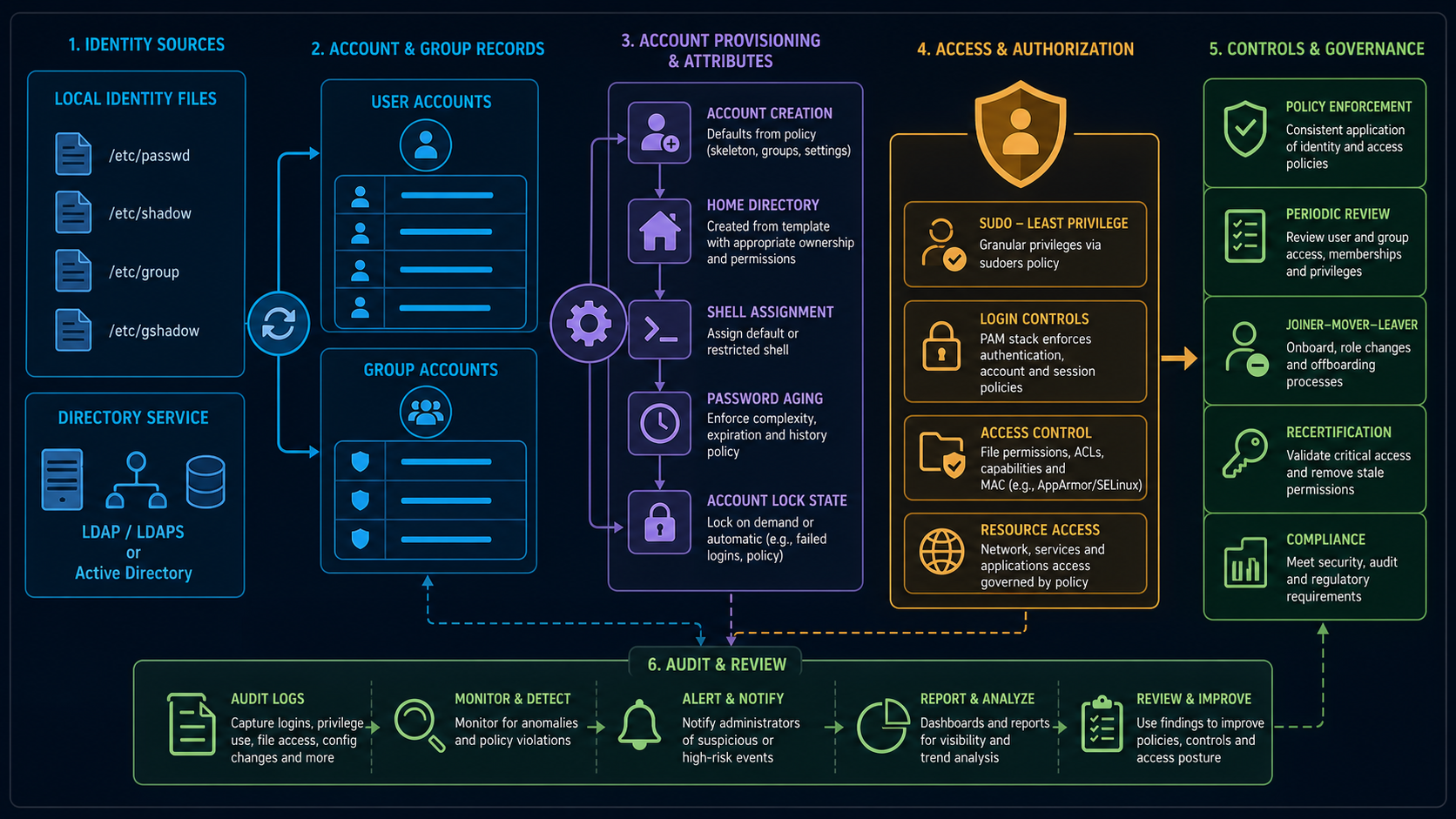
Core Concepts and Scope
Correct password recovery depends on understanding component relationships, not just command names. Compare query results, configuration files, running processes, logs, and actual service responses.
| Area | Operational principle |
|---|---|
| Identity | Numeric UIDs/GIDs determine file ownership and process permissions more directly than usernames |
| Authentication policy | Combines shadow, PAM, password expiration, locking, and login shells |
| Access lifecycle | Review account creation, changes, inactivity, departures, and sudo privileges regularly |
Key Points Corrected in This Guide
- Treat physical or virtual console access as a powerful privilege.
- Record the reason, operator, and time of the change.
- After reboot, use individual accounts and sudo rather than direct root SSH login.
Pre-Change Checks
- Inspect existing UIDs/GIDs, groups, home directories, and file ownership for conflicts.
- Distinguish service accounts from human accounts and define shell, home, expiration, and lock policies.
- Use a secure input method instead of embedding password hashes in command arguments or scripts.
- After changing access, verify a new session, group membership, sudo scope, and service-file access.
- Lock unused accounts and keys, and regularly audit ownership, groups, and recent logins.
Perform this only at the console of a system you own or are authorized to administer. After the change, review temporary access methods and boot-menu security again.
Commands and Configuration Examples
Run commands stage by stage. A successful code block does not automatically make the next step safe. Inspect output, exit status, and logs before continuing.
Step 1: Inspect Current State
# Press e at the GRUB screen on the console.
# Append rd.break to the kernel line that begins with linux.
# Boot with Ctrl+x, then run the following commands in the recovery shell.
mount -o remount,rw /sysroot
chroot /sysroot
Step 2: Apply the Recovery Procedure
passwd root
touch /.autorelabel
mount -o remount,ro /
exit
exit
Step 3: Validate the Result
SELinux relabeling may take time and may trigger another reboot afterward. Do not interrupt power; wait for the normal login screen. Log in at the console using the changed password, then check the following state. There is no need to enable root SSH login.
getenforce
sudo passwd -S root
sudo journalctl -b -p warning --no-pager
sudo sshd -T | grep permitrootlogin
Validation and Troubleshooting
Validation goes beyond a command’s success message. Check the executing identity, actual file/process/socket state, service logs, and user-visible functionality. If something fails, compare the last change with the known-good baseline instead of repeating the same command blindly.
- Matching usernames with different UIDs do not produce matching shared-file or NFS permissions.
- Group changes do not immediately affect existing login sessions; verify them in a new session.
- Distinguish account locking, shell restrictions, and whether a service account can execute its workload.
Record before-and-after output, packages and versions, operator, time, validation results, and rollback status. Reproduce recurring work in a test environment before automating it.
Operations Checklist
- Clearly identify the target host, user, device, file, and service.
- Back up current configuration and important data elsewhere.
- Use least-privilege accounts and the necessary network scope.
- Replace example commands and configuration values with actual environment values.
- Verify functionality from a new session or independent client.
- Confirm logging, monitoring, backup/recovery procedures, and ownership.
Official Documentation and Related Guides
- Red Hat RHEL 8: Recover the root password with rd.break
- Linux useradd(8) manual
- Linux usermod(8) manual
- SSH Key Authentication and Account Security
- OpenLDAP Accounts, TLS, and Backup Operations
A root password reset is complete when the settings work after reboot or in a new session, permissions and exposure match the intended policy, and errors can be detected and recovered safely—not merely when a command runs once.