SSH Key Authentication: Ed25519, ssh-agent, and Server Security
EdwardMoon
SSH key authentication is a chain of trust: verify server identity, protect the private key, distribute the public key, test a new session, and strengthen login policy. It is more than removing a password prompt. Keep the private key on the client and protect it with a passphrase and ssh-agent.
This guide uses Ed25519 and covers an RSA alternative for FIPS mode, known_hosts verification, authorized_keys permissions, sshd validation, key revocation, and recovery in operational order.
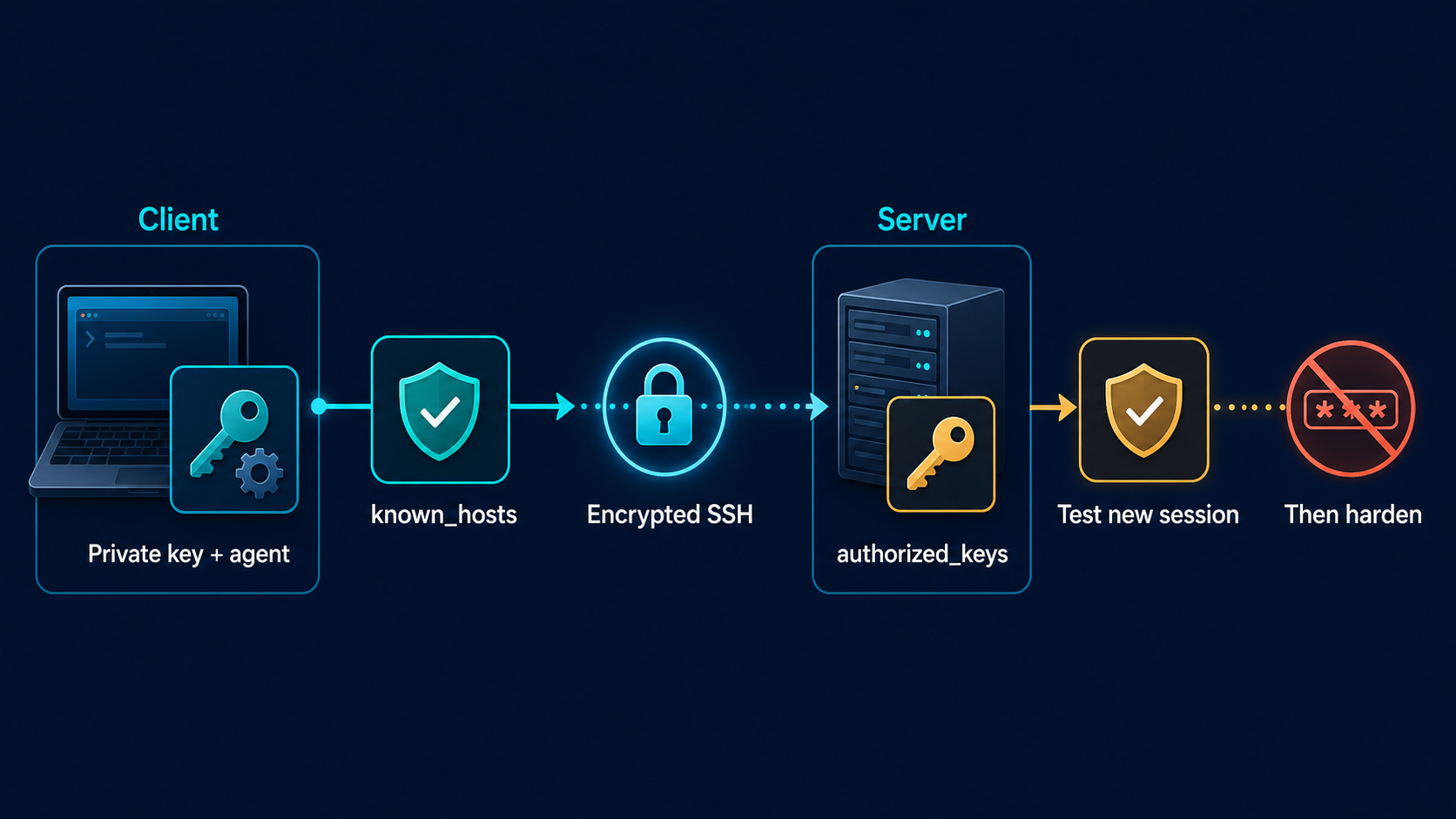
Two Different Checks in SSH Authentication
| What is verified | Where it is stored | Risk if verification fails |
|---|---|---|
| Is the server authentic? | Client known_hosts | May connect to a man-in-the-middle server |
| Is the user authorized? | Server authorized_keys | Stolen or unauthorized keys may gain access |
Working public-key user authentication alone does not establish a safe connection. Verify the server host-key fingerprint through a trusted console, asset management system, or separate channel to detect server impersonation.
Generate a Passphrase-Protected Client Key
Ed25519 is a compact, secure default for ordinary environments. FIPS mode may not permit it; under such policies, use an RSA key of sufficient length. Choose purpose-specific filenames to avoid overwriting existing keys.
install -d -m 0700 ~/.ssh
ssh-keygen -t ed25519 -a 100   -f ~/.ssh/id_ed25519_ops   -C 'ops-admin@client'
chmod 0600 ~/.ssh/id_ed25519_ops
chmod 0644 ~/.ssh/id_ed25519_ops.pub
RSA Alternative for FIPS Policy
ssh-keygen -t rsa -b 3072 -o -a 100 -f ~/.ssh/id_rsa_ops -C 'ops-admin@client'Never upload private keys to servers, tickets, messaging systems, or Git repositories. Only the single-line public key from the .pub file belongs on the server.
Manage Unlocked Keys with ssh-agent
eval "$(ssh-agent -s)"
ssh-add ~/.ssh/id_ed25519_ops
ssh-add -l
Verify the Server Fingerprint Through a Separate Channel
Display the public host-key fingerprint from the server console and compare it with the client’s first-connection prompt. ssh-keyscan collects keys but does not prove they belong to the real server; never trust its output without verification.
sudo ssh-keygen -lf /etc/ssh/ssh_host_ed25519_key.pub
sudo ssh-keygen -lf /etc/ssh/ssh_host_rsa_key.pub
ssh-keyscan -t ed25519 server.example.com > /tmp/server.hostkey
ssh-keygen -lf /tmp/server.hostkey
install -m 0600 /tmp/server.hostkey ~/.ssh/known_hosts.ops
rm -f /tmp/server.hostkeyUse the known_hosts file only when the SHA256 fingerprints in both outputs exactly match the value verified through a separate channel. If they differ, stop connecting and investigate DNS, IP addresses, and rebuild records.
Deploy the Public Key to authorized_keys
For initial setup, connect once through an already authorized password login or console and add the public key. When available, ssh-copy-id simplifies duplicate handling and permissions.
ssh-copy-id -i ~/.ssh/id_ed25519_ops.pub ops@server.example.comManual Deployment Without ssh-copy-id
cat ~/.ssh/id_ed25519_ops.pub | ssh ops@server.example.com 'umask 077; mkdir -p ~/.ssh; cat >> ~/.ssh/authorized_keys'# From here, run commands in the server's ops user session.
chmod 0700 ~/.ssh
chmod 0600 ~/.ssh/authorized_keys
restorecon -RFv ~/.sshOn SELinux-enabled RHEL-family systems, file contexts must be correct as well as permissions. Also verify that other users cannot write to the home directory.
Use a Client Alias and Explicit Key
Host prod-app-01
    HostName server.example.com
    User ops
    IdentityFile ~/.ssh/id_ed25519_ops
    IdentitiesOnly yes
    UserKnownHostsFile ~/.ssh/known_hosts.ops
chmod 0600 ~/.ssh/config
ssh -v prod-app-01Verify Before Disabling Password Login
Keep the current administrator session open while testing public-key login from another terminal. Do not disable PasswordAuthentication before verifying recovery-console access and sudo privileges.
ssh -o PreferredAuthentications=publickey   -o PasswordAuthentication=no   prod-app-01
sudo -v
whoami
Check sshd Syntax and Effective Settings
sudo sshd -t
sudo sshd -T   | grep -E '^(pubkeyauthentication|passwordauthentication|kbdinteractiveauthentication|permitrootlogin) '
After key authentication works, separate policy into a drop-in file. Include order and Match blocks can change effective settings, so verify sshd -T output rather than relying only on the file contents.
sudo install -d -m 0755 /etc/ssh/sshd_config.d
sudo tee /etc/ssh/sshd_config.d/20-key-auth.conf >/dev/null <<'CONF'
PubkeyAuthentication yes
PermitRootLogin no
PasswordAuthentication no
KbdInteractiveAuthentication no
CONF

sudo sshd -t
sudo sshd -T | grep -E "^(pubkeyauthentication|passwordauthentication|kbdinteractiveauthentication|permitrootlogin) "
sudo systemctl reload sshd
ssh -o PreferredAuthentications=publickey prod-app-01
sudo journalctl -u sshd --since '-10 minutes' --no-pagerRestrict and Revoke Keys
Separate automation keys from general-purpose human administrator keys. Where appropriate, use authorized_keys options to restrict source addresses or features. These options can block required tunneling or PTY behavior, so validate them in a test environment first.
from="198.51.100.0/24",restrict ssh-ed25519 AAAAC3NzaC1lZDI1NTE5AAAA... deploy-keyRemove the corresponding public-key line when a key is compromised or a user leaves. For centralized revocation, create an OpenSSH KRL and reference it through sshd’s RevokedKeys. Update an existing KRL with -u to preserve previous revocations, build it in a temporary file on the same filesystem, then replace it atomically. If sshd cannot read the KRL, it may reject all public-key authentication, so retain an existing administrator session and recovery console. On servers using Match blocks, inspect the real connection conditions with a command such as sshd -T -C user=ops,host=client.example.com,addr=198.51.100.10.
KRL_STAGE_DIR=$(sudo mktemp -d /etc/ssh/krl-stage.XXXXXX)
if sudo test -f /etc/ssh/revoked.krl; then
  sudo cp -p /etc/ssh/revoked.krl "$KRL_STAGE_DIR/revoked.krl"
  sudo ssh-keygen -k -u -f "$KRL_STAGE_DIR/revoked.krl" compromised_key.pub
else
  sudo ssh-keygen -k -f "$KRL_STAGE_DIR/revoked.krl" compromised_key.pub
fi
sudo chown root:root "$KRL_STAGE_DIR/revoked.krl"
sudo chmod 0644 "$KRL_STAGE_DIR/revoked.krl"
sudo mv "$KRL_STAGE_DIR/revoked.krl" /etc/ssh/revoked.krl
sudo rmdir "$KRL_STAGE_DIR"
sudo restorecon /etc/ssh/revoked.krl
sudoedit /etc/ssh/sshd_config.d/20-key-auth.conf
# Add the following line to the file's global settings.
# RevokedKeys /etc/ssh/revoked.krl
sudo sshd -t
sudo sshd -T | grep "^revokedkeys "
sudo systemctl reload sshd
Troubleshooting SSH Key Authentication
ssh -vvv prod-app-01
ssh-add -l
ssh-keygen -lf ~/.ssh/id_ed25519_ops.pub
sudo journalctl -u sshd -b --no-pager
sudo namei -l /home/ops/.ssh/authorized_keys
sudo ls -ldZ /home/ops /home/ops/.ssh /home/ops/.ssh/authorized_keys
sudo sshd -T- If authentication is rejected after Offering public key, check the user, public-key line, permissions, and SELinux contexts.
- For Too many authentication failures, explicitly set IdentitiesOnly and IdentityFile.
- For REMOTE HOST IDENTIFICATION HAS CHANGED, verify server rebuilds or DNS changes instead of blindly deleting the old key.
- If access fails after a configuration change, restore the drop-in through an existing session or console and run sshd -t.
Official Documentation and Related Guides
- Red Hat: Secure communication with OpenSSH
- OpenSSH sshd_config manual
- OpenSSH ssh-keygen manual
- Ansible Playbooks and Secure SSH Automation
- Kubespray Management Accounts and Host-Key Verification
SSH key lifecycle management matters more than key generation alone. Keep private keys on clients, verify server fingerprints, test new sessions before tightening policy, and revoke compromised keys promptly. These practices make passwordless access a real security improvement.